
How to Activate Windows by Phone?
Complete step-by-step activation guide for Windows 10, 11, and all versions
Important: Make sure you have a valid Windows product key before starting this process. Phone activation is typically used when internet activation fails.
When Do You Need Phone Activation?
Phone activation is required when automatic internet activation fails. This typically happens when:
- You receive error code 0x803F7001 during activation
- Your computer doesn't have an internet connection
- Windows activation servers are temporarily unavailable
- You're installing Windows on multiple machines with volume licensing
- Your firewall is blocking activation requests
Required Items
- ✓Valid Windows Product Key (25 characters)
- ✓Access to Windows computer
- ✓Phone or internet connection
Estimated Time
- ⏱️Method 1 (Online): 5-10 minutes
- ⏱️Method 2 (Phone Call): 10-15 minutes
Initial Steps (For Both Methods)
Enter Your Product Key
First, try to enter your Windows product key normally. If you're doing a fresh installation, you'll be prompted during setup. For existing Windows installations:
Windows 10/11:
Go to Settings → Update & Security → Activation → Change product key
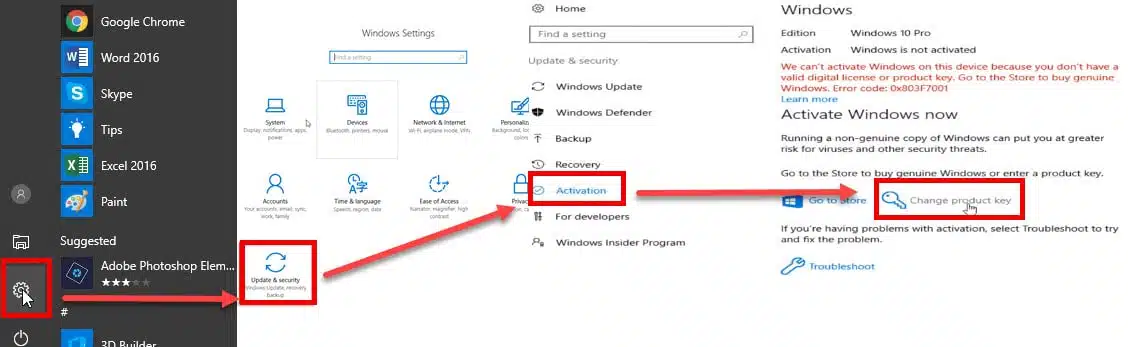
Navigate to Windows Activation settings
Encounter Activation Error
After entering your product key, you'll typically receive error code 0x803F7001. This is normal and indicates that phone activation is required.
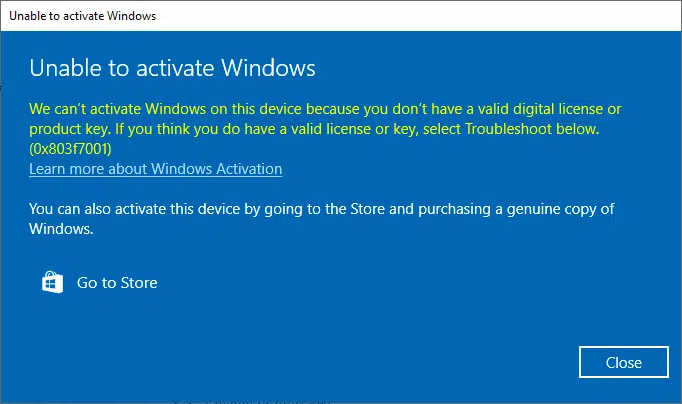
Common activation error requiring phone activation
Open Phone Activation Window
Open the Windows phone activation utility:
Press Win + R → Type SLUI 4 → Press Enter
Note: There must be a space between "SLUI" and "4"
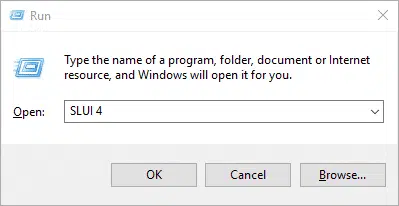
Run dialog with SLUI 4 command
Select Your Country/Region
Choose your country or region from the dropdown menu and click "Next". This determines which phone number you'll call (for Method 2) or which activation server to use (for Method 1).
Get Your Installation ID
You'll see a screen with your Installation ID (IID). This is a long number that you'll need for both activation methods. Copy this number carefully.
Tip: You can select and copy the Installation ID with Ctrl+C for easier handling.
Method 2: Call the Microsoft Activation Center
Be sure to check the latest activation numbers at the link below and then get started.
Open Phone Activation Window
Press Win+R keys to open Run, then type: SLUI 4, then click OK. (Note that there is a gap between SLUI and 4).
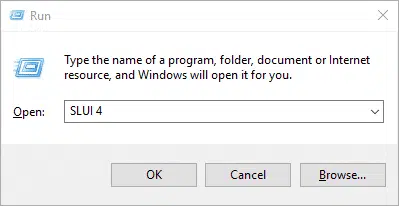
Activate windows by Phone Guide - SLUI 4 command
Select Your Country or Region
Select your country or region, then click on the Next button.
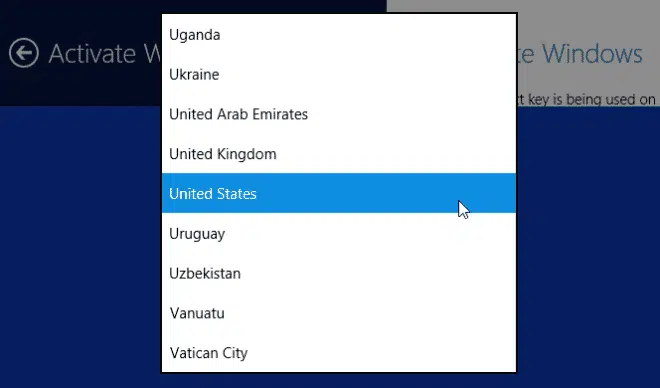
Activate windows by Phone Guide - Select country
Call Microsoft Product Activation Center
Call the phone number provided to reach the Microsoft Product Activation Center. You will first be guided through an automated menu where you must answer a few questions about which product you are trying to activate (Windows 10), whether you have previously activated it (No) and whether you have a product key (Yes).
Navigate Automated System
The automated system will now describe the Internet Activation process. You already know this information, but just wait for it to be completed. At the end, the system will ask you if you still need help. Say "Yes", and then you will be taken to a human operator.
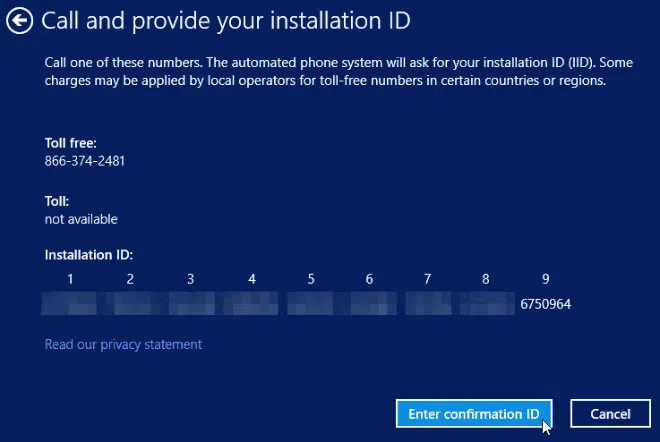
Activate windows by Phone Guide - Phone activation process
Speak with Human Operator
The human operator will ask for confirmation of which product you are trying to activate (Windows 10) and then ask if you have an installation ID (Yes, it is on the same screen as the phone number you called).
Read Installation ID
The human operator will ask you to read that number. I found that you can read it relatively quickly and they hold up well; and if you speak clearly, you usually only have to read it once.
Receive Confirmation ID
The human operator will return you to the automated telephone system, which after a few brief instructions will read your confirmation ID. Then, once the human operator returns the call to the automated system, click on "Enter Confirmation ID" and enter the numbers when they are read to you.
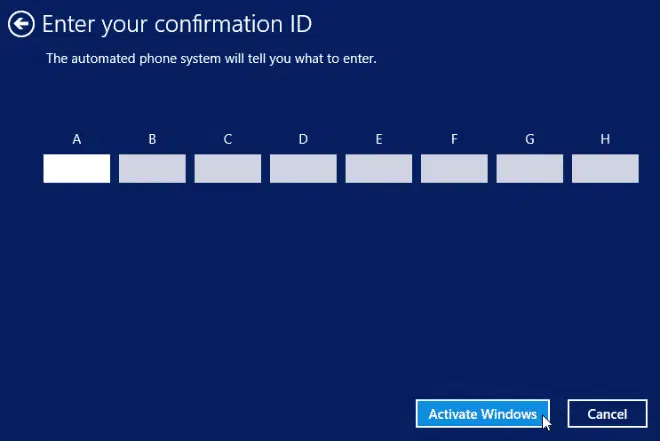
Activate windows by Phone Guide - Enter Confirmation ID
Complete Activation
Once you have entered the confirmation ID, you can click Activate Windows and, if your product key is valid and the numbers have been entered correctly, you should be ready.
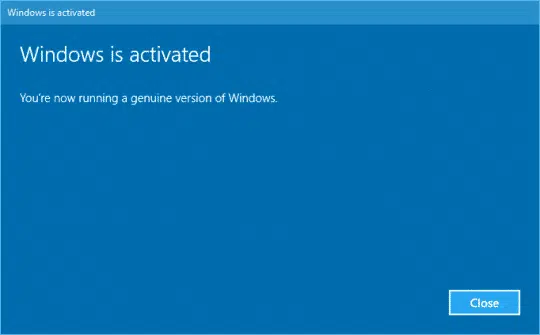
Activate windows by Phone Guide - Activation successful
Congratulations! Your Windows is now successfully activated. You can verify this in Settings → Update & Security → Activation.
Troubleshooting Common Issues
"SLUI 4" Command Not Working
- •Make sure there's a space between "SLUI" and "4"
- •Try running as administrator: Right-click Start → Run → Type "SLUI 4"
- •Use Command Prompt: Open CMD as admin and type "SLUI 4"
Invalid Product Key Error
- •Verify you're entering the correct product key
- •Ensure the key matches your Windows version (Home/Pro/Enterprise)
- •Make sure the key hasn't been used on too many computers
Phone Number Not Working
- •Try different phone number from our updated list
- •Call during business hours in your region
- •Use a different phone or calling method
Activation Still Fails
- •Sometimes activation servers are busy - try again later
- •Check your internet connection if using Method 1
- •Contact Microsoft support directly if both methods fail
Frequently Asked Questions
Is phone activation legal and safe?
Yes, phone activation is completely legal and safe. It's a Microsoft activation method for when internet activation isn't available or fails. Microsoft provides this service free of charge.
How many times can I use phone activation?
You can use phone activation multiple times if needed, but each product key has a limit on how many different computers it can be activated on. Retail keys typically allow activation on one computer at a time.
What if I don't speak English well?
Microsoft's phone activation system supports multiple languages. Make sure to call the number for your country/region, and the automated system will offer language options at the beginning of the call.
Can I use this method for Windows Server?
Yes, phone activation works for Windows Server editions as well. The process is identical, but you'll need to specify that you're activating Windows Server when speaking with the representative.
What information does Microsoft collect during phone activation?
Microsoft only collects the Installation ID and basic information about your Windows version. They don't access your personal files or data. The representative may ask general questions about how you're using Windows (business, personal, etc.).
Additional Resources
Related Guides
Need Help?
If you're still having trouble with Windows activation, our support team is here to help.
Contact SupportActivation Successful?
Great! Your Windows is now activated and ready to use. Remember to keep your product key in a safe place for future reference.